
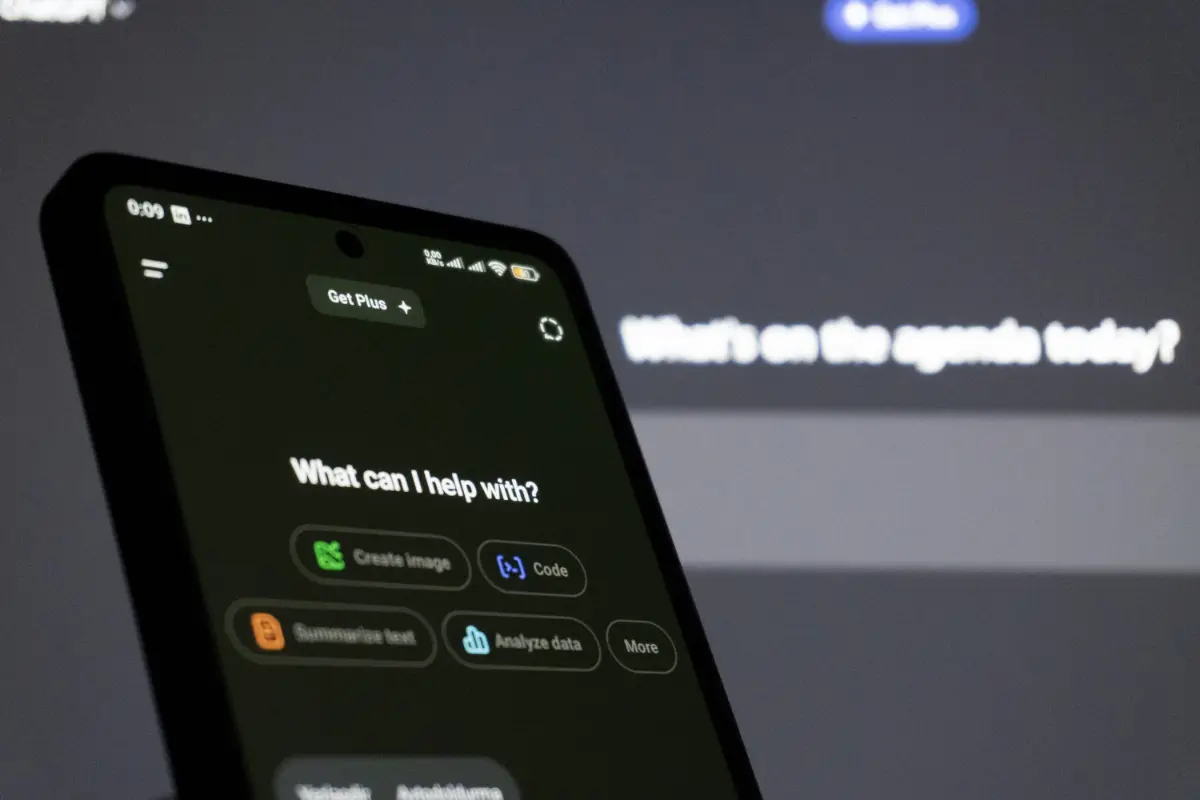
It doesn’t matter if you are a professional working in an office, a businessman, or a freelancer working remotely. Everyone nowadays uses ChatGPT and AI applications. ChatGPT users would be well familiar with the glitch that usually occurs, and they may have frequently faced a question like, “ChatGPT Voice Mode keeps interrupting me. How to stop it?” Are there any real solutions to make your conversation with ChatGPT smoother, like you are interacting with a human sitting in front of you?
There are a few reasons that make this glitch happen. These reasons may include short pauses when you’re speaking, background noise, echo in the room, or using microphones that have issues. Fortunately, there are solutions available to this problem. Whenever ChatGPT stops listening to you or suddenly stops in the middle of a conversation, this experience can be very frustrating for you.
In order to avoid these situations, you can apply quick fixes such as trying to use headphones or premium-quality headphones, moving to a quiet room, and making sure that you have placed the microphone close to your mouth when speaking. Use short sentences, clear language, and avoid long pauses. If you want to know in detail how to keep your conversations smoother with ChatGPT and any other AI tool, you can read this article till the end to find step-by-step information that is easy to follow and helps you fix your conversation issues with AI tools.
Why Does ChatGPT Voice Mode Keep Interrupting Me?
You may know the pause that voice mode listens for like the back of your hand. That does not mean a pause is not a short silence between your words. When voice mode may hear a pause, it invariably may think your turn is over. It is all well and good until voice mode starts to answer. General upkeep and familiarity are good, and this is the most common cause. It is part of proper quality assurance that this is why the app can seem to talk over you. So, to be acquainted, or reacquainted, with your machines, a second cause is sound that is not your voice.
Voice chat is two-way voice communication where you and the app take turns. First, you speak, and then the app speaks. The app must guess when to start and must guess the end of your turn. Sometimes it guesses too early, especially when you stop to think. In other words, voice mode is only making a wrong guess, and you can help voice mode guess better.

Is Echo or Background Noise Causing It?
Yes, echo or background noise can cause it. The microphone is part of your phone or computer. In fact, the microphone hears your voice and may also hear other sounds. Then ChatGPT may think you started to speak, stop its own answer, and seem to cut itself off.
Echo means the sound from your speaker goes back into the microphone. Also, echo happens often on a computer with open speakers, and some people report echo in Advanced Voice Mode. Background noise is any sound around you, and examples include a fan, a TV, or people talking.
Here is a quick test. Stay silent while ChatGPT speaks. ChatGPT might still stop by itself, and echo or noise is the likely cause in that case.
How Do I Fix Echo and Noise?
For most echo and noise problems, the three steps of using headphones, sitting in a quiet room, and keeping the microphone close to your mouth are effective.
Not only can you use headphones, but headphones keep the sound inside your ears, so the microphone cannot hear the sound. That is why headphones are an absolute boon if you want to learn how; in this guide, we will tell you everything about wired headphones and earbuds. In this setup, wired headphones and earbuds both work well, and a quiet room also has plenty of benefits. Without a doubt, these steps represent significant help for this setup. One of the most significant needs of this setup is to turn off the TV. You only need to close the window, eliminating the noise. Then, you can move away from any fan.
Either way, checking your microphone is not very hard, and checking your microphone may seem hard, but it is not that hard. Normal phone use allows you to hold it normally and keep it at a normal distance from your mouth. For example, on a computer, you need to use a headset microphone; this is all you need to do, and a headset microphone is better than the built-in one. The headset microphone stays close to you, but the echo may stay. First, you should mute your microphone when ChatGPT speaks, and you should mute it during that time. That is because you should turn your microphone on again when your turn comes, and you should turn it on then. The first thing you should take care of is muting your microphone.
How Do I Stop It From Cutting Me Off When I Pause?
In turn, this will help you speak in short, clear parts. Pro Tip: you might want to read more details at the beginning of your path. More details are about avoiding long silent gaps in the middle of a thought. Now that you have to do this right, according to this article, there are good benefits, and you can get these benefits by planning your first sentence. Look for ways to plan your first sentence. Planning your first sentence also means you should start after that. This arrangement can make the app hear steady speech, and you should use steady speech for that. Additionally, you want the app to be less likely to cut in, and you should use steady speech for that too. Another consideration is that you have to consider having steady speech, and steady speech must work in your app.
This is a great way to gain a little practice and raise the bar. What is more, you can go a long way in providing steady speech and assuring yourself of that. So, if you are interested specifically in one thing about trying mock interviews with ChatGPT, the main aspect is to prioritize that main aspect. You have to answer each question in clear parts and prioritize that main aspect. However, you must make this benefit work for you, while you must first focus on improving steady speaking. You should do this after a few tries, and steady speaking will feel natural in a minimalistic fashion.
Let us talk about all these tricks that will help you check the hold-to-talk option when your app has it, eventually use the option, and know your app has a hold-to-talk option. It means that you can decide to hold a button while you speak, and a wait will happen until you let go. Your app should serve as a solution provider for this option, and you should not make any guesses. If your app lacks this option, you can skip this step, as its name suggests.
Which Voice Setting Should I Use?
As any experienced user knows, you can make the right decisions. Therefore, you can be sure to open the app settings and look for the Voice section as well. The point is that, based on this, we can see one requirement: a setting has to exist. This enables you to see that the setting is a menu choice, and the menu choice changes how the app works. Another voice option may exist, and you can also use another voice option, and for good reason. That way, another voice option should be favorable and good to try. Thus, here is one thing to keep in mind: the names have to emphasize how they can change between app versions. So, all of this establishes that you can choose from the options that your app shows, and the names make some versions list Live, Advanced, and Standard.
This has gone a long way towards helping you show yourself that you can test one short chat after each change this way. But this is not the only reason why you should use this way, and make sure to see which choice interrupts you the least.
What If It Still Interrupts Me?
Check out the app update, restart, and new device test that form one step, and you rely on this step. We have already briefly mentioned that you can update the app, restart the app, and try another device. As you already know, if you think about it, the meaning of restart should be clear. What is more, you can close the app fully and open the app again. No wonder, in this manner, you can use a backup plan if nothing works. Another reason you can type your message is that you can use the dictation button on your phone keyboard to send the text to ensure good message typing. As you know, with dictation, your phone writes down the words that you say, and in this way, your long thought stays in one piece.

FAQ
Q1. Why does ChatGPT talk over me?
Otherwise, pauses are all too easy for ChatGPT to hear when speaking in voice mode. As long as you imagine this, the risk of this problem is greatly reduced. The moment ChatGPT hears a pause, it thinks that your turn is over. However, echo or noise can also cause ChatGPT to think you are speaking. Maybe this does not happen all the time, but it can happen every few turns. Do you not use headphones to fix this by pausing?
Q2. Why does ChatGPT cut off its own answer?
To think of it, you need access to the depth of insights only your app can provide. What should you still do right now? ChatGPT’s microphone hearing the speaker’s voice is a complex system. When ChatGPT hears the speaker’s voice, it thinks you started to talk. Using headphones will free up your time so you can fix this.
Q3. Can I make voice mode wait longer?
However, just make sure your app does not have a setting for this, or you risk creating a longer wait. Still, aside from speaking in steady parts, you will need to start looking into another aspect. Using headphones as another aspect will reduce complexity, increase simplicity, and create the foundation for smooth speaking. You can even try another voice option that comes with simple fixes that make life easier for you and your app.
Q4. Is the problem my microphone?
Having said this, you have to ensure a clearer sound across all microphone settings. All you have to do is make sure to eliminate the majority of this problem. When a far or weak microphone hears the room more than your voice, you will certainly come to understand the room inside and out and hone your microphone performance. Once you find a far or weak microphone, you can also consider moving the microphone closer or using a headset to help you fix this. If your goal is to make your microphone performance excellent, you will need all the time you can get.
Conclusion
For example, pauses, echo, and background noise are the main causes, and there is nothing simple about a voice problem. When these causes become a pattern, they create this problem. Simple fixes are a critical requirement for fixing this problem and apply to every setting and every aspect of your voice mode. Headphones simplify, automate, and streamline virtually the entire voice process. You can also speak in steady parts through the app to make better voice decisions. After all, when you try another voice option, you succeed. Going one step at a time is necessary to keep ChatGPT from getting frustrated and choosing a different voice option. Testing after each change will take your attention away from fixing this problem. Both actions are vital when you are trying to fix this problem.
Hence, a microphone might pick up too much of the room around you, too little of the speaker’s voice, or hear background noise. A quiet location and a good-quality microphone will generally be favorable if this happens once. Relying on a voice tool that needs a clearer sound to work with will hold you back in your efforts to fix this problem.

Haroon writes about AI chat tools and voice assistants. He covers how to get the most out of AI apps in your daily life.